
Choose a single arm unless you're fully committed to two matched monitors and your desk has the clamp space to spare. Single arms give you independent height, tilt and depth control for each screen, which matters more than most buyers expect. Dual arms earn their place only when desk-edge real estate is genuinely tight or you want one footprint for two identical displays. Check weight limits, VESA compatibility and desk edge material before you decide either way.
TL;DR:
- Two single monitor arms provide independent height, tilt, and depth adjustments, making them more flexible for varied workflows and future upgrades.
- Mounting options differ: clamp mounts suit lighter setups and non-permanent arrangements, while grommet mounts offer superior stability for heavier monitors and thicker desks.
- Each arm's weight limit, VESA compatibility, and desk material must be checked, especially for heavier or larger monitors, to prevent sagging and wobbling over time.
- L-shaped and narrow desks benefit from multiple single arms or a dual arm depending on space constraints, but standing desks often require grommet mounts due to thicker surfaces.
- Installing two single arms generally takes less time per unit and costs about the same as a quality dual arm, with more flexibility for future monitor changes.
Table of Contents
- Single vs dual monitor arm: pros and cons at a glance
- How does monitor arm choice affect posture and workflow?
- Clamp vs grommet mount: which suits your desk?
- Stability, weight limits and the dual-rated warning
- Desk layout: L-shaped, standing and narrow desks
- Planning for upgrades: how to future-proof your setup
- Installation time and cost: what to actually expect
- Which ULTI monitor arm fits your setup?
- Why we recommend starting with a single arm
- Get the right monitor arm for your desk
- Sources
Single vs dual monitor arm: pros and cons at a glance
Two single arms and one dual arm solve the same basic problem, but they trade flexibility for footprint in opposite directions. Understanding the derived costs and limitations helps more than reading spec sheets alone.
Two single arms give you independent adjustment for each screen. You can set one monitor higher for coding reference material and drop the other lower for a design canvas, without either arm fighting the other's geometry. A dual arm mounts from a single clamp or grommet point, which frees up desk edge but ties both screens to one shared pivot.
- Flexibility: single arms let you reposition, angle, or swap one monitor without touching the other; dual arms move both screens as a linked pair, often with limited independent tilt.
- Desk footprint: a dual arm uses one clamp or bolt point; two singles need two, though many desks have room for both.
- Cost: two quality single arms often cost about the same as one single-post dual arm, sometimes less, while giving more adjustment range, according to comparative price and review data from DeskSetup Pro.
- Upgrade path: replacing or resizing one monitor is simple with singles; a dual arm may need a whole new crossbar if your new screen doesn't balance the old one.
- Stability: single arms carry one load each; dual arms concentrate two loads through one joint, which raises wobble risk if the arm isn't built for it.
For most home and office setups, two singles win on flexibility and long-term value. A dual arm makes sense mainly when you want one clean mounting point and you're confident you won't change your monitor pairing anytime soon.
How does monitor arm choice affect posture and workflow?
Screen position drives posture more than chair choice for most desk workers, and monitor arms are the tool that gets it right. The rules are simple but easy to get wrong when you're eyeballing height instead of measuring it.
- Set your primary monitor first. The top of the screen should sit at or slightly below eye level, with the whole display 50 to 70 cm away for a typical 24 to 27 inch monitor.
- Angle your secondary monitor to support, not compete. Tilt it slightly toward you and set it a touch lower or further back than your primary screen, especially if it's for reference material rather than active work.
- Match arm choice to your actual workflow. If you switch between tasks that need different screen heights, coding alongside documentation, or design work next to a preview pane, two single arms let you set each screen exactly where that task needs it.
A dual arm's linked crossbar makes step three harder. Both screens usually sit at a fixed relative height and angle, which is fine if you view them identically but frustrating if one job needs a lower, angled reference screen and the other needs a straight-on primary display.
Pro Tip: Sit in your normal working posture before adjusting anything. Most people set monitor height while leaning forward to inspect the arm, then wonder why their neck aches an hour later.
Clamp vs grommet mount: which suits your desk?
The mounting method decides whether your arm goes in cleanly or fights your desk from day one. Clamp mounts grip the desk edge and need no drilling; grommet mounts pass a bolt through a hole in the desktop and spread the load across the surface itself, according to FindOfficeFurniture's comparison of the two methods.
Before buying, run through this checklist:
- Measure your desk edge thickness and check for clearance underneath, since support rails or drawer runners can block a clamp's jaw.
- Confirm the clamp's jaw range and pad width against your desk. Most clamps fit edges up to roughly 2.4 inches (60 mm), so thicker standing-desk tops can fall outside that range.
- If your monitor, or combined monitors, exceed a moderate weight threshold, or your desk has a motorised or very thick top, lean towards grommet mounting for extra rigidity.
- If you're renting or don't want to drill, clamp is the sensible default, but check whether your desk is laminate or solid wood first. Laminate can dent or chip under heavy clamp pressure over time.
Grommet mounting takes a bit more setup but distributes lateral force through the desk itself rather than pinching the edge, which matters once you're carrying real weight.
Stability, weight limits and the dual-rated warning
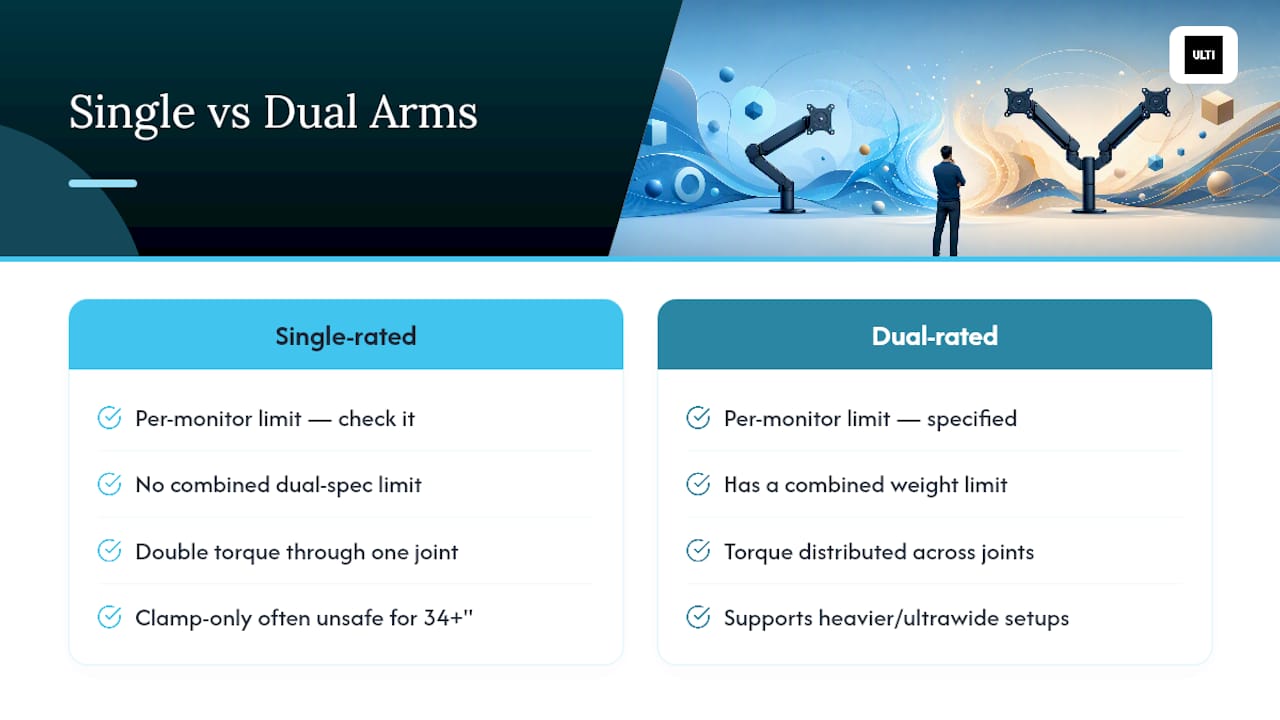
Never mount two monitors to an arm that isn't explicitly rated for dual use. A single-rated arm carrying two screens puts double the torque through one joint, and that joint wears faster than the spec sheet implies, according to VersaDesk's guide to multi-monitor arm setups. The result is progressive sagging, then a wobble that gets worse every month rather than staying constant.
The numbers that matter: check the arm's per-monitor weight limit and its combined limit separately, not just one figure. Ultrawide and 34 inch-plus monitors often exceed the safe zone for clamp-only dual arms, and owner reports and mount testing consistently flag grommet mounting as the more stable choice once you're in that weight class.
If your desk or arm spec sits anywhere near the marginal line, two separate clamps or a grommet bolt-through mount will avoid the micro-wobble that a stretched single-clamp dual arm tends to develop after a few months of daily adjustment.
Desk layout: L-shaped, standing and narrow desks
Desk shape often decides this argument before weight or budget even come into it. On an L-shaped or corner desk, mounting two single arms on different edges lets you wrap screens around your seating position, something a single-post dual arm generally can't replicate because it's built to project from one fixed point.
Standing desks bring their own complication: many desktops are thicker than a standard clamp's jaw range, so a motorised desk often needs either a grommet mount or a clamp specifically rated for deeper edges. Measure the top before ordering, not after.
Narrow desks are the one case where a dual arm's single-clamp footprint genuinely helps, freeing up desk edge that two clamps would otherwise take. The trade-off is losing independent positioning, so weigh that against how much you actually need each screen angled differently.
Planning for upgrades: how to future-proof your setup
If you expect to change monitor sizes, add a screen, or switch orientation within a couple of years, buy single arms now. They swap out individually, while a dual arm's crossbar often needs replacing entirely if your new pairing doesn't balance the same way.
- Check your arm's spring or gas cylinder tension periodically. A monitor that drifts downward on its own usually needs a tension adjustment, not a replacement.
- Inspect the VESA plate screws every few months if you reposition often. Loose plates are the most common cause of unexpected sag.
- Move from clamp to grommet if you upgrade to a heavier or larger display. Many arm systems use modular adapters, so you don't always need a whole new arm.
Installation time and cost: what to actually expect
Two single arms typically take less time per arm to install than a single dual arm, though the combined installation time for two singles may be longer due to separate setups, based on assembly-time patterns from owner reviews.
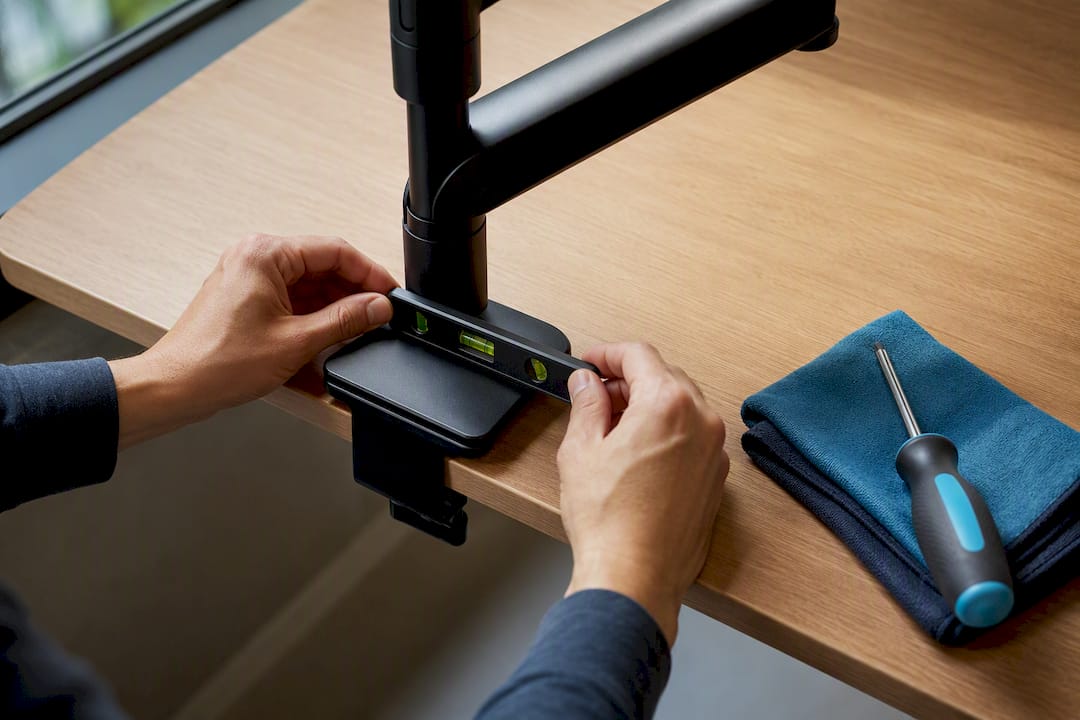
On cost, two decent single arms frequently land close to what you'd pay for one quality dual arm, and you get more adjustment range for a similar outlay. Keep a screwdriver, a spirit level and some cardboard or a cloth to protect the desk surface while you work. Tightening clamps evenly on both sides prevents the small tilt that causes cable strain later, and it's worth checking torque on all screws again after the first week of use.
Which ULTI monitor arm fits your setup?
If you're leaning single, ULTI's Ultra Single Monitor Arm (T30) suits buyers who want spring-assisted height adjustment with built-in USB ports for a clean cable run, while the Rival Single Monitor Arm (T62) offers a more compact option for tighter desks. For committed dual setups, the Flex Pro Dual Monitor Arm (T18 PRO) is built as a genuinely dual-rated arm rather than a stretched single design.
All three carry reinforced steel construction and cable management channels, the same durability standard ULTI applies across its standing desks and chairs. Before ordering, run your desk thickness and monitor weight through the monitor arm compatibility checker to confirm clamp or grommet fit ahead of purchase.
Why we recommend starting with a single arm
Our reasoning throughout this comparison keeps landing on the same point: independent positioning solves more real workflow problems than a tidy single-clamp footprint does. The exceptions are narrow, genuinely space-constrained desks or a firm, long-term commitment to two identical screens.
Owner feedback we've seen consistently prioritises three things: stability under daily readjustment, full range of motion, and how the joint holds up after a year of use. If you're unsure which category your desk and monitors fall into, testing arms in person or running the compatibility checker beats guessing from a spec sheet.
— ULTI
Get the right monitor arm for your desk
ULTI is the practical alternative to guessing your way through a spec sheet: check your desk thickness and monitor weight against real product data before you buy, rather than after your arm sags. Our range covers single and dual monitor arms built with reinforced steel and integrated cable channels, so whichever way this comparison points you, the arm itself won't be the weak link.

If your workflow needs independent height and depth control, start with the Ultra Single Monitor Arm (T30). If you've settled on two matched displays and want one clean mounting point, the Flex Pro Dual Monitor Arm (T18 PRO) is built for that exact job. Run your measurements through the compatibility checker first, or visit the showroom to test both before you commit.
Sources
For more on dual-monitor best practice, see BenQ's knowledge centre guide. For mount-method testing and stability comparisons, see DeskSetup Pro's clamp vs grommet breakdown.
- Ergotron LX Single vs Dual Monitor Arm — DeskSetup Pro
- Monitor arm clamp vs grommet — FindOfficeFurniture
- Monitor Arms & Multi-Monitor Setup Guide: Do It Right – VersaDesk
- The 5 Best Monitor Arms of 2026 | Wirecutter