
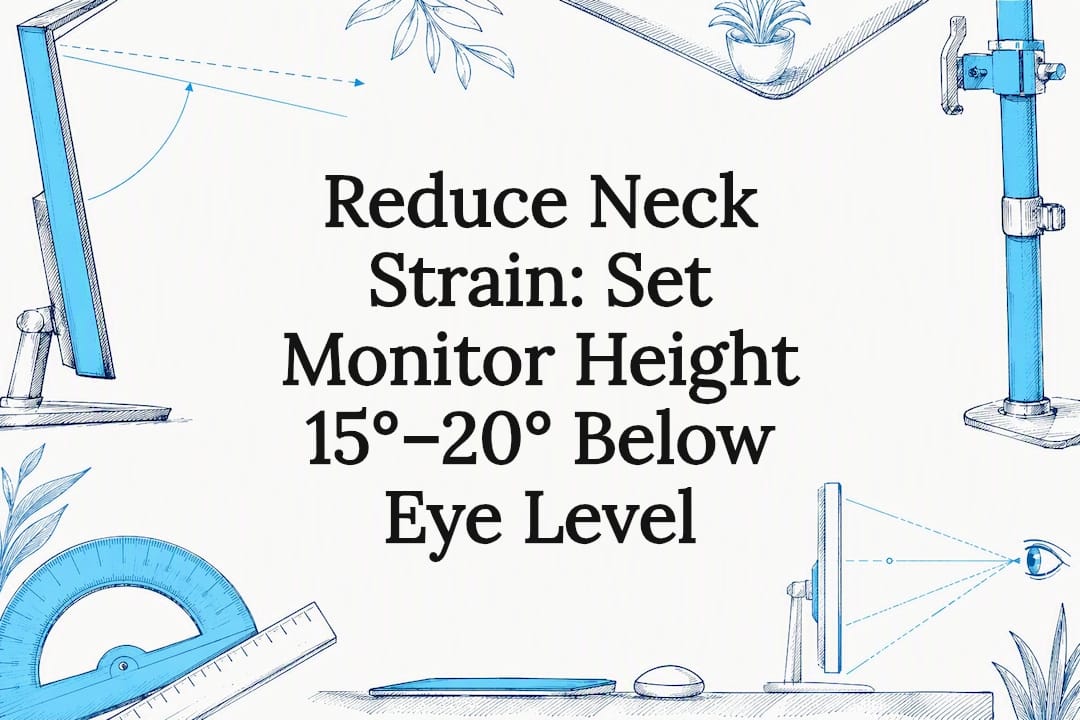
Position the centre of your screen so your eyes look about 15° to 20° below horizontal, with the display roughly an arm's length away (50 to 100 cm). That single adjustment, more than any other change to your desk, is what stops the slow creep of neck and shoulder strain. Test it now: sit normally, close your eyes, then open them. If you're not looking straight at the screen's centre, tilt the panel back 10 to 20° or raise it slightly and try again.
TL;DR:
- The ideal monitor setup places the screen center 15° to 20° below eye level and 50 to 100 cm away from your eyes, depending on monitor size.
- Larger screens or ultrawides require sitting further back and focusing on the center rather than the top of the display for proper ergonomics.
- Using a monitor arm or adjustable stand helps maintain proper height and tilt, especially when switching between sitting and standing positions.
- Fixing common setup errors like positioning the monitor too high, too low, or too close can significantly reduce neck and shoulder pain without additional cost.
- Regularly re-check the monitor's positioning using eye and fingertip tests, rather than relying once on a fixed setting, to prevent chronic discomfort.
Table of Contents
- What is the ideal monitor height checklist?
- How do you measure and set your monitor height?
- Does monitor size change the ideal height?
- Which accessories actually fix monitor height?
- Why does your neck still hurt with a monitor you already adjusted?
- What ULTI has learned fitting monitors to real desks
- Why the "eye level" rule misleads more people than it helps
- Get your monitor height right and keep it that way
- Sources
What is the ideal monitor height checklist?
Before you touch anything, know the numbers you're aiming for. These come from workplace ergonomics standards, not guesswork, and they hold true whether you're on a laptop stand or a triple-monitor rig.
- Viewing angle: centre of the screen sits 15° to 20° below horizontal eye level, according to OSHA's computer workstation guidance.
- Tilt: angle the screen back 10° to 20° so the whole panel sits perpendicular to your line of sight.
- Distance: roughly 50 to 100 cm, or about an arm's length, from your eyes to the screen.
- 24 to 27 inch monitors: the classic "top at eye level" trick works fine here.
- 32 inch and larger: push your distance out towards the 90 to 100 cm mark and stop worrying about the top edge.
- Ultrawide or large panels: sit further back and centre the screen on your dominant task, not the physical middle of the desk.
- Laptop users: raise the laptop on a stand and use an external keyboard, otherwise the screen sits too low by design.
- Progressive or bifocal wearers: lower the monitor slightly below the standard range so you're reading through the correct lens zone, not tilting your chin up.
How do you measure and set your monitor height?
Get this right once and you rarely need to touch it again, aside from the odd re-check after a chair swap.
- Sit properly first. Hips back in the chair, feet flat, shoulders relaxed, forearms roughly horizontal at the keyboard. None of the monitor maths matters if your seated posture is off.
- Measure your eye height. Sit as you normally would and measure from the floor to the outer corner of your eye, or use the simpler fingertip method: stretch your arm out horizontally and note where your fingertips land, roughly where your gaze should rest.
- Work out your target monitor height. A practical formula from TheCalcs' ergonomic monitor height calculator puts the top of a 24 to 27 inch screen about 1.5 cm below eye height, with the centre a further 14 cm down. If maths at your desk isn't appealing, punch your height into the calculator and skip the arithmetic.
- Set the physical height. Use your chair, a riser, or a monitor arm to bring the screen to that mark. A monitor arm gives you the finest control here since it adjusts in small increments rather than fixed steps.
- Adjust tilt and distance. Tilt back 10° to 20°, then slide the monitor to arm's length.
- Verify. Do the 15° gaze check again: eyes forward, screen centre should be exactly where you land. Follow it with the fingertip distance test to confirm you're not hunched forward.
Pro Tip: Prop your phone against a book at eye level and take a side-on photo of yourself at the desk. Draw a horizontal line from your eyes and a second line to the screen centre. Most phone camera apps and free spirit-level apps will even overlay the angle for you, so you're not eyeballing 15° and hoping.
Does monitor size change the ideal height?
Screen size breaks the old "top of screen at eye level" advice faster than most people realise. On a 24 inch monitor, aligning the top edge with your eyes usually lands the centre close enough to that 15° zone. Push the same rule onto a 32 inch or ultrawide display and the centre ends up far lower than 20°, forcing your chin down and your neck into a poor angle for hours at a stretch.
The fix is to stop thinking about the top of the screen altogether and fix your attention on the centre instead, a distinction that matters more as panels get bigger.
- 32 inch and above: keep the centre in the 15° to 20° zone and move your seat back rather than lowering the screen.
- Ultrawide or 43 inch curved displays: treat the middle of the curve as your reference point, and expect to sit noticeably further back than you would with a standard 27 inch monitor.
- Dual-monitor setups: if one screen does most of the work, centre that one on your body and angle the second monitor inward at roughly 30° to 45°; if you split attention evenly, centre the seam between the two screens instead.
Anyone running a dual-monitor arm should also check how each arm's reach and tension affect this, which our dual monitor arm setup guide covers step by step.
Which accessories actually fix monitor height?
Buying a gadget rarely fixes bad posture on its own, but the right accessory removes the daily friction of getting into position and staying there.
- Gas-spring monitor arm: best when you adjust height often, want tool-free repositioning, or run a heavy or large display that a fixed riser can't accommodate.
- Fixed riser or stand: fine for a single monitor at a height you set once and rarely change.
- Low-profile stand: useful mainly for extra desk clearance underneath, not for meaningful height adjustment.
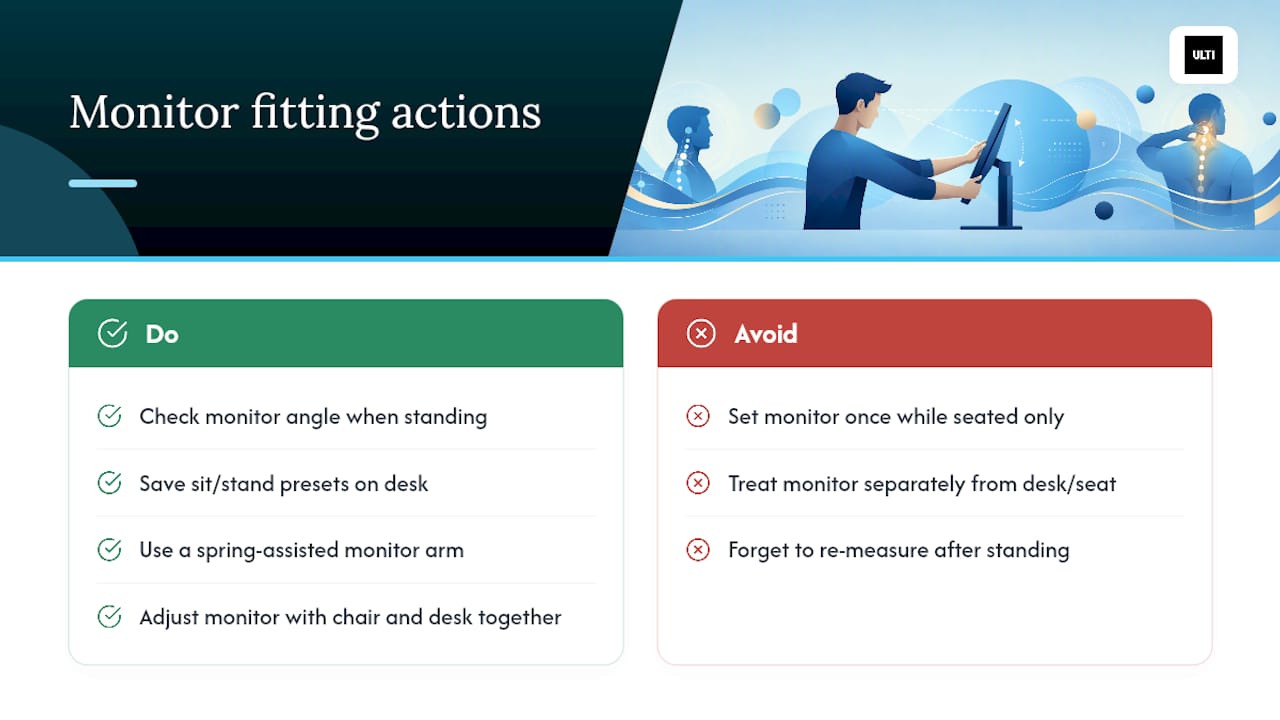
- Sit-stand desks: changing between sitting and standing shifts your eye height every time, so monitor height needs to move with it. If your arm doesn't reposition automatically, you're back to square one at every switch.
Before buying anything, check compatibility: VESA mount pattern (75x75mm or 100x100mm covers most monitors), the monitor's weight against the arm's rated range, how far the arm needs to reach across your desk, and whether you need a clamp or a grommet mount for your particular desktop.
Pro Tip: If you switch between sitting and standing through the day, save both heights as a mental note or physical mark on your arm's pole. Re-testing the 15° angle at both positions takes thirty seconds and stops the standing position from becoming an afterthought.
Why does your neck still hurt with a monitor you already adjusted?
Most discomfort traces back to one of three setup errors, and all three are fixable without spending a cent.
- Monitor too high: your chin lifts, your neck extends backward, and CCOHS specifically flags this as worse than a monitor set slightly too low. Lower it until the centre sits back in the 15° to 20° zone.
- Monitor too low: you round your shoulders and drop your chin forward, which strains the same muscles from the opposite direction. Raise it with a riser or arm rather than stacking books, which rarely holds a stable angle.
- Too close: you'll notice eye fatigue and a tendency to lean back defensively. Move the screen to arm's length first, and only increase text or UI scaling if the extra distance makes small text unreadable.
- Too far: you'll catch yourself leaning forward to read, which undoes every posture gain from the rest of your setup.
- Laptop-only setups: the built-in screen sits low by design, so a laptop riser paired with an external keyboard fixes this faster than any software tweak.
- Glasses wearers: progressive and bifocal lenses often need the screen positioned slightly lower than the standard range, since reading through the correct lens zone matters more than hitting 15° exactly.
What ULTI has learned fitting monitors to real desks
Numbers on a page only help once they're translated into an actual desk. That's the gap our own ergonomic home office setup guide tries to close, walking through monitor height alongside chair and desk adjustments rather than treating them as separate problems.
One pattern shows up constantly with sit-stand desks: people nail the monitor angle while seated, then stand up and never re-check it. The screen that sat at a perfect 15° an hour ago is suddenly too low, because standing raises your eye line by several centimetres. Our standing desk sizing guide covers how to set presets for both positions so you're not re-measuring daily. Pairing that with a spring-assisted monitor arm means the screen follows your eye height automatically, rather than becoming a once-a-year adjustment you forget about until your neck reminds you.
Why the "eye level" rule misleads more people than it helps
The advice to line up your monitor's top edge with eye level is one of the most repeated pieces of desk wisdom around, and it's also one of the most misleading once your screen grows past 27 inches. That rule was never really about the top of the screen. It was a rough proxy for getting the centre of your gaze to land in the 15° to 20° zone, and on a compact monitor the proxy happens to work.
What the research consistently supports is measuring from the centre, not the top, and treating distance as inseparable from height rather than an afterthought. A monitor set at the "correct" height but too close still forces awkward neck postures, just in a different direction. The habit worth building isn't memorising one number. It's re-testing the 15° gaze check every time something changes: a new monitor, a new chair, a switch to standing, even a new pair of glasses. Most people set their monitor once and never touch it again for years, which is precisely how a small misalignment turns into a chronic ache nobody can quite trace back to its source.
Prioritise the fingertip and gaze checks over any single fixed number, because your proportions, your chair, and your monitor will always be slightly different from whatever example a guide uses.
— ULTI
Get your monitor height right and keep it that way
Reading the numbers is one thing; holding that 15° angle every day through chair changes, desk swaps, and standing sessions is another. That's where a proper monitor arm earns its keep over propping a screen on books or leaving it fixed on a stand that can't move with you. Ulti's monitor arms give you the fine-grained height and tilt control this guide describes, without the daily fiddling a rigid setup demands.
If you're not sure which arm fits your monitor's weight, VESA pattern, or desk edge, the monitor arm compatibility checker walks through it in a couple of minutes before you buy anything. Running a sit-stand desk already? Check how your current setup handles the sitting-to-standing transition against our standing desk sizing guide, then measure your own numbers and see what actually needs adjusting at Ulti.
This article is general information, not a substitute for advice from a qualified doctor. Consult a qualified healthcare professional about your own circumstances before acting on anything here.
Sources
- Posture: your workstation | University of Pittsburgh Environmental Health and Safety
- Computer Workstations — Monitors | OSHA eTools
- Office ergonomics — positioning the monitor | CCOHS
- Where your monitor should sit (height and distance) | Standing Desk Reference
- Ergonomic monitor height calculator | TheCalcs