
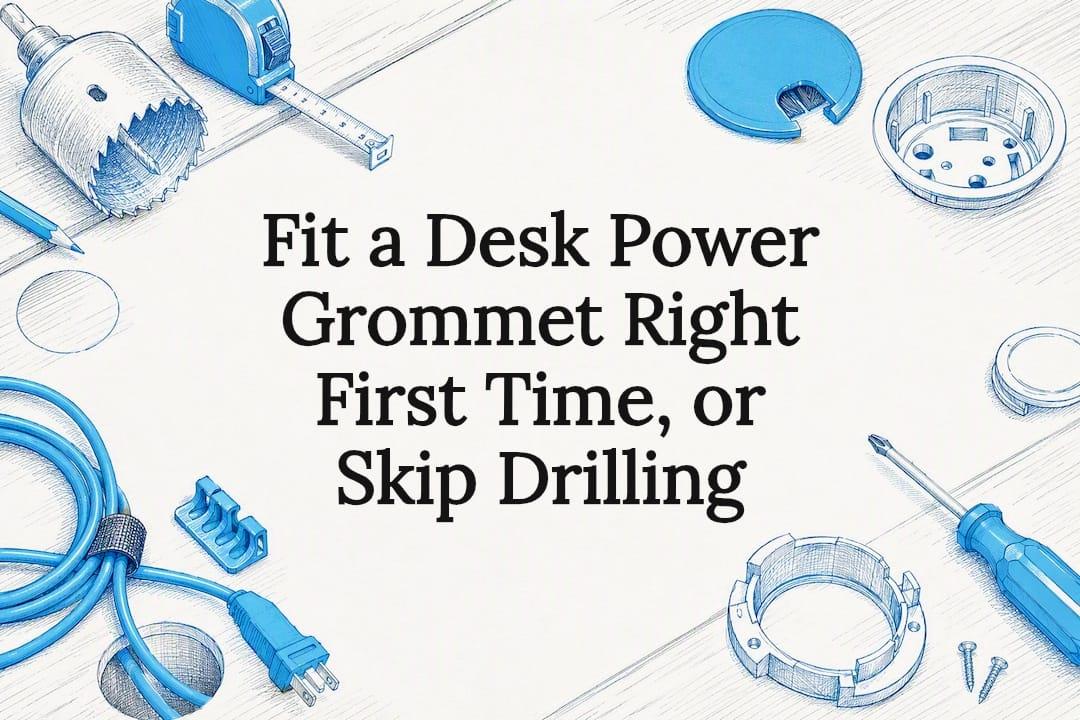
A desk power grommet is the fastest way to get mains power and USB charging within reach of your keyboard, without trailing extension cords across the floor. Go for a flush-mount model with USB‑PD if you regularly charge a laptop or phone at your desk, but check three things first: the cutout diameter your desk can take, whether the material can be safely cut, and whether you have a nearby mains socket to feed it.
TL;DR:
- Ensure your desktop material is suitable for drilling, especially avoiding glass, stone, or thin veneers, to prevent cracks or splintering.
- Check that the desk's existing hole diameter and thickness fall within the grommet's specifications before purchase.
- Confirm the grommet's power capacity, including the total USB wattage and mains load limits, to avoid overloading your circuit or device chargers.
- Consider whether a flush-mount or pop-up design matches your aesthetic preference and budget, noting that pop-up units are more complex and costly.
- Follow proper safety standards by verifying the unit's certifications and avoiding hardwired installations unless performed by a licensed electrician.
Table of Contents
- What is a desk power grommet, and why do people fit one?
- What features and specs actually matter when buying one?
- How do I check my desk is compatible before I cut a hole?
- How do you install a desk power grommet step by step?
- What safety and certification checks should you make?
- How does a grommet fit into a tidy, ergonomic desk setup?
- Does a grommet work with your existing cable management setup?
- How much power and load can a grommet actually support?
- Which grommet design suits your desk and budget?
- How do you maintain a grommet and fix common problems?
- Are desk power grommets safe to install under electrical codes?
- When should you DIY, and when should you call a professional?
- Prefer no drilling at all? ULTI's cable systems get you there
- Sources
- FAQ
What is a desk power grommet, and why do people fit one?
A desk power grommet is a compact power unit that drops into a hole cut through your desktop, so the sockets and USB ports sit flush with (or just above) the work surface instead of hanging off the back edge. Some are flush-mount, sitting level with the desk; others are pop-up, staying hidden until you press them and they rise a few centimetres for access. Both connect to your existing wall socket through a cord that runs underneath the desk, out of sight.
The appeal is straightforward. Independent reviewers who have fitted one report that having power and USB charging within arm's reach makes daily use noticeably easier, cutting down on the usual tangle of extension leads and adapters trailing across the floor, according to a hands-on review from PCWorld.
Typical benefits include:
- Power and USB charging positioned exactly where you sit, not behind the monitor
- Fewer loose cables and adapters cluttering the desktop
- A tidier look, since the cord management happens under the desk
- One socket doing the job of several desktop chargers
One quick caution: not every desktop can take a grommet safely. Glass, natural stone, and some thin veneers are poor candidates for cutting, a point worth flagging now before the buying checklist below.
What features and specs actually matter when buying one?
Most buying decisions come down to five things: socket count, USB type and wattage, cord length, mounting style, and price. Get these wrong and you either can't fit the unit or it can't power what you need.
Mains sockets and earthing. Look at how many mains outlets you actually need. Many recessed grommets pack two mains outlets alongside USB charging in a single housing, according to Mockett's technical documentation for its PCS100B unit. Check that the earthing arrangement matches your plug type and wiring standard before buying, especially if you're importing a unit designed for a different country's socket format.
USB type and wattage. A basic USB‑A port charges phones fine but struggles with laptops. USB‑PD (Power Delivery) ports negotiate higher wattage with compatible devices, which is the difference between a laptop trickle-charging over hours and charging properly while you work. Manufacturer specs commonly note USB output around 2.1 amps per port on standard USB‑A designs, with some models built so a larger device doesn't starve a smaller one plugged in alongside it, per Mockett's product notes.
- Standard USB‑A: fine for phones, tablets, earbuds
- USB‑C with PD: needed for most modern laptops charging at speed
- Match the wattage to your heaviest device, not your lightest
Cord length and mounting. Cords typically run around six to six-and-a-half feet, long enough to reach a nearby skirting socket without an extension. Flush-mount units sit permanently level with the desktop; pop-up units retract when not needed, which suits a cleaner look but costs more and adds moving parts that can eventually wear.
Pro Tip: Buy the grommet before you buy the desk mat or coaster set. Some tamper-resistant covers need a few extra millimetres of clearance around the opening, and it's easier to plan the layout once than to shuffle accessories twice.
Expect to pay somewhere in the range of a modest accessory purchase for a basic two-socket unit, rising with added USB‑PD ports, tamper-resistant covers, or pop-up mechanisms.
How do I check my desk is compatible before I cut a hole?
Cutout diameter is the single most common fitting mistake, so measure before you order anything.
- Measure the existing hole, if there is one. Many desks already have a factory grommet hole. Retail listings for universal desk grommets commonly specify a fit range of roughly 2 to 4 inches (about 50 to 100 millimetres), so measure across the widest point of your existing hole and compare it against the Home Depot listing for a universal desk grommet to confirm your new unit will cover it.
- Check desk thickness. Most units are rated for desktops up to around 2 inches (5 centimetres) thick. Thicker tops, especially reinforced steel-framed desks, may need a longer mounting collar or professional fitting.
- Inspect under the desktop for obstructions. Cross-braces, wiring channels, or drawer runners can sit exactly where you plan to drill. Look underneath with a torch before marking anything on top.
- Rule out unsuitable materials. Glass and stone tops crack under drilling stress and generally need specialist tools you won't have at home. Thin veneers can splinter or delaminate around a fresh cutout, so test on an offcut first if you're unsure.
How do you install a desk power grommet step by step?
Fitting a grommet into a solid wood or MDF desktop is a manageable weekend job if you take it slowly and measure twice.
- Prepare the site. Decide exactly where the grommet will sit, ideally within reach but clear of where your knees or chair will pass underneath. Check beneath the desk for cross-braces or cables before marking anything.
- Mark and measure the cutout. Trace the grommet's template or use a compass to mark the correct diameter, following the manufacturer's technical drawing rather than guessing, since manufacturer installation sheets remain the most reliable source for cutout dimensions.
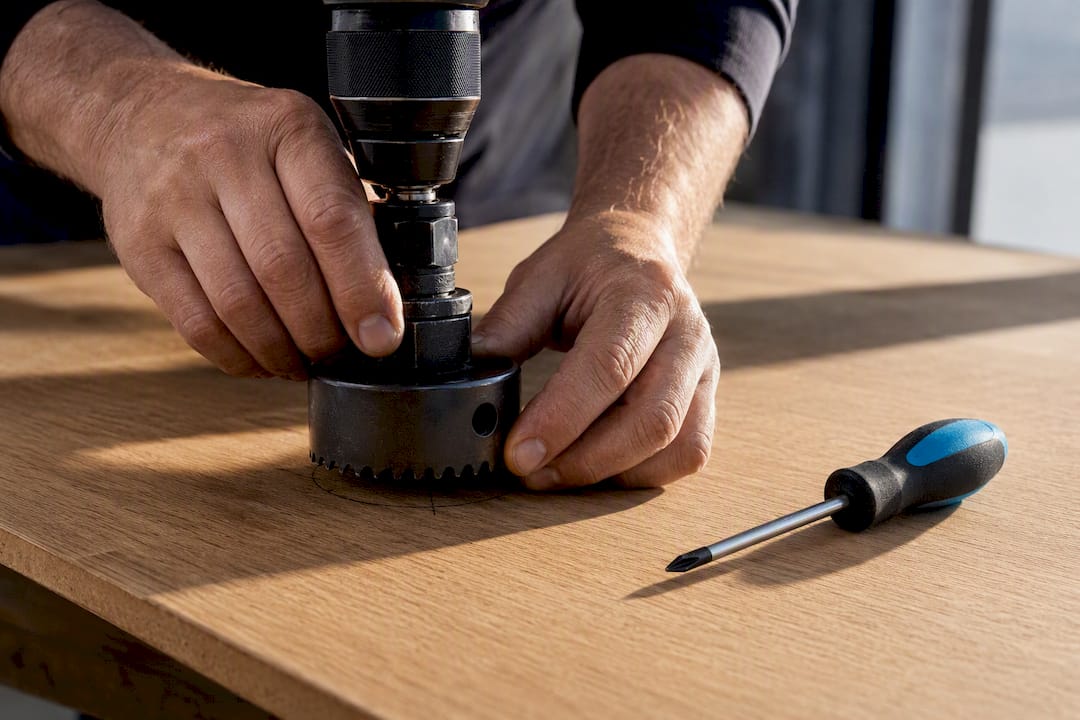
- Drill a pilot hole, then cut. A step-by-step home installation guide recommends starting with a small pilot hole, then switching to a hole saw sized to the marked diameter for a clean, round cut, according to Christine Nickerson Design's installation walkthrough. Wood and MDF cut cleanly with a standard hole saw on a drill; laminate benefits from a slower speed and masking tape over the cut line to reduce chipping.
- Fit and secure the grommet. Drop the unit into the cutout, tighten the retaining screws or clips underneath, and check it sits flush or seats correctly if it's a pop-up design.
- Route the cable and connect power. Run the cord down through the hole, along the underside of the desk, and to your wall or skirting socket, securing it with clips so it doesn't hang loose.
- Test everything. Plug in a lamp or phone charger to confirm the mains socket works, then test each USB port with a device to confirm charging speed. Press the reset or overload button if the unit trips, and re-test.
If a socket won't power on, check the wall outlet first, then the reset switch on the grommet itself; most nuisance trips are overload protection doing its job rather than a fault.
What safety and certification checks should you make?
Electrical fittings deserve a bit more scrutiny than a desk lamp, even at this small scale.
- Check for a recognised safety mark from your country's electrical standards body before buying, not just a generic "CE" sticker with no further detail.
- Favour tamper-resistant socket designs, particularly in shared offices or homes with children nearby.
- Confirm the unit has overload protection with a visible reset switch, and test it once after installation by drawing a deliberate overload (a hairdryer works) to see it trip and reset cleanly.
- If the installation involves hardwiring rather than plugging into an existing socket, or if you're at all unsure about the wiring, bring in a licensed electrician rather than guessing.
How does a grommet fit into a tidy, ergonomic desk setup?
A grommet solves power access, but cable mess usually needs a second fix. Pairing a flush grommet with an under-desk cable tray and a proper monitor arm keeps everything routed away from your legs and off the desktop entirely.
If drilling into your desktop isn't an option, an ULTI clamp-on cable management spine achieves a similar tidy result without a hole saw in sight. A practical setup: a height-adjustable standing desk, a flush grommet centred within reach, and a monitor arm lifting the screen clear of the newly freed desktop.
Does a grommet work with your existing cable management setup?
A grommet handles power access, but it doesn't organise the cables running from it, so pairing it with a proper cable management system matters more than most buyers expect.
Under-desk cable trays catch the slack from your grommet's cord and any device cables feeding into it, keeping everything off the floor and out from underfoot. A cable management guide for standing desks covers how to route cords through moving desk frames without them snagging as the height changes, which matters more with a grommet installed, since the cord now has a fixed anchor point on the desktop rather than trailing loose.
Clip-on raceways and adhesive cable clips work well alongside a grommet for shorter runs, keeping charging cables tidy between the grommet and your laptop or phone. For desks that already have monitor arms or PC holders fitted, check the grommet's position doesn't clash with the arm's clamp point. A grommet mounted too close to the desk's rear edge can interfere with a clamp-style monitor arm or under-desk PC mount, so plan the layout of accessories and grommet together rather than adding the grommet as an afterthought.
If you're setting up from scratch, decide the full accessory layout, monitor arm, PC holder, cable tray, and grommet position, before drilling anything. Retrofitting a grommet around accessories already mounted is far more awkward than planning the desk once.
How much power and load can a grommet actually support?
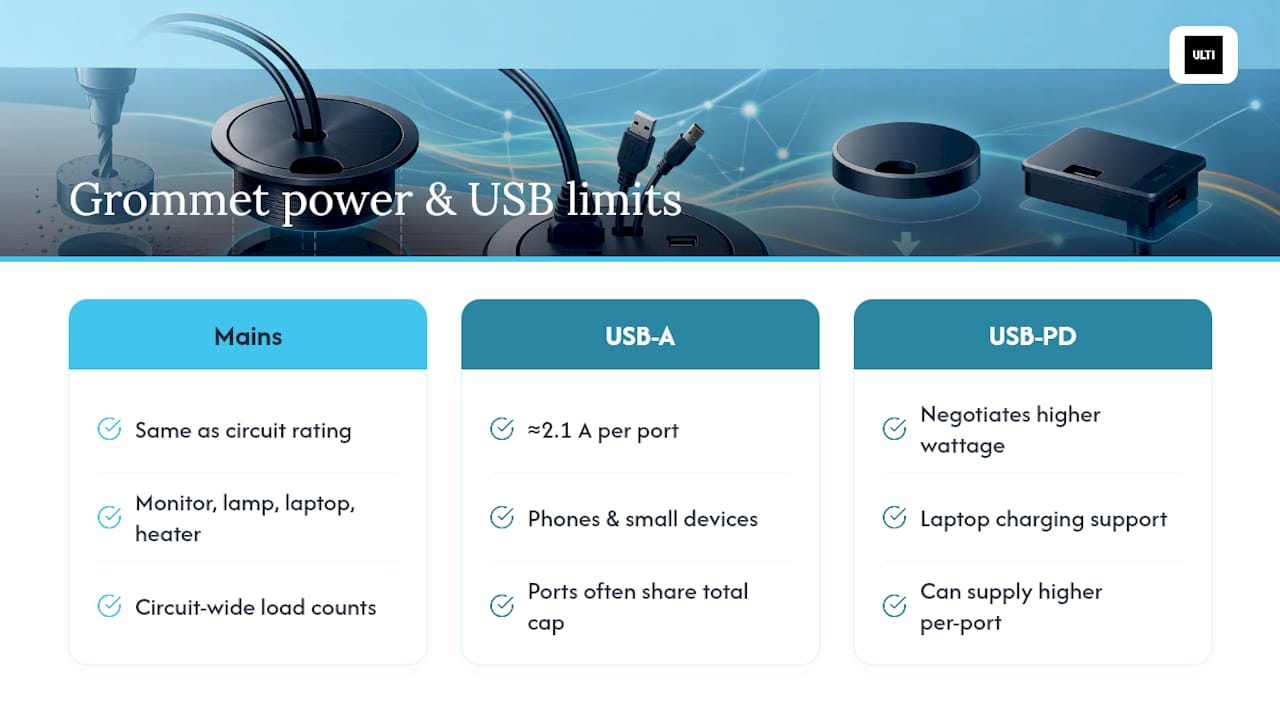
Every desk power grommet has a limit on how much it can safely deliver, both through its mains sockets and its USB ports, and it pays to check both before you plug in a full desk setup.
Mains sockets on a grommet carry the same load rating as any other socket on that circuit, so a monitor, desk lamp, laptop charger, and a small heater plugged in simultaneously can add up quickly. Most home office setups (a laptop charger, a monitor, and a phone charger) sit well within normal limits, but running power-hungry equipment like space heaters or multiple monitors through the same grommet is worth checking against the unit's rated capacity first.
USB ports have their own separate ceiling. A standard USB‑A port supplying around 2.1 amps handles phones and small devices comfortably, but asking it to charge a power-hungry laptop will either fail silently or charge painfully slowly. This is exactly where USB‑PD ports earn their keep: they negotiate higher wattage directly with compatible laptops, and PCWorld's review notes that PD support is what actually makes a grommet useful for modern laptop charging rather than just topping up a phone.
If you're plugging in several devices at once, check the grommet's total combined USB output rather than assuming each port runs at full rated power simultaneously. Some designs cap total shared output across all ports, others give each port its own independent supply, and the difference matters if you're charging a laptop and a phone at the same time.
Which grommet design suits your desk and budget?
Desk power grommets split broadly into three design types, and each comes with a genuine trade-off rather than one being simply better.
Flush-mount grommets sit permanently level with the desktop, sockets and USB ports always visible and accessible. They're the simplest mechanically, with no moving parts to wear out, and tend to sit at the lower end of the price range. The trade-off is a permanently visible fitting, which some people find less tidy when not in use.
Pop-up grommets stay hidden below the desktop until pressed, rising a few centimetres to reveal the sockets. They look cleaner when idle, which appeals in shared or client-facing spaces, but the mechanism adds cost and is one more moving part that can eventually stick or wear.
Rotating or swivel grommets let you angle the socket face towards your seating position rather than fixing it flat. Useful on wider desks where the grommet sits further from where you sit, though they're less common and typically pricier than a basic flush unit.
Within each design type, the real differentiator tends to be the electronics inside rather than the housing style, socket count, USB‑PD wattage, and whether overload protection is genuinely reliable. A basic flush unit with solid USB‑PD support will often serve a laptop-heavy desk better than a pop-up model with only standard USB‑A ports, regardless of which looks tidier.
How do you maintain a grommet and fix common problems?
Grommets are low-maintenance, but a handful of issues come up often enough to plan for.
Dust and debris settle into the socket gaps over time, particularly on flush units sitting exposed to desk clutter. A quick wipe with a dry cloth every few weeks, and an occasional check that the tamper-resistant shutters (if fitted) still move freely, keeps things working as intended.
If a socket stops powering on, check the wall outlet first; a tripped circuit upstream is far more common than a fault in the grommet itself. Next, look for the grommet's own reset or overload switch, most units include one, and a firm press often restores power immediately. If USB charging slows dramatically or stops, unplug and reconnect the cable at both ends before assuming the port has failed; loose connections at the grommet end are a frequent, easily fixed culprit.
Pop-up mechanisms that stick or rise unevenly usually mean debris has worked into the sliding mechanism. A light vacuum around the base, rather than any lubricant, generally clears it without introducing residue that attracts more dust.
If a unit trips its overload protection repeatedly under a normal load, that's a sign it's underrated for what you're plugging into it, not a fault to keep resetting. Move heavier devices to a different socket and consider a higher-capacity grommet for future purchases.
Are desk power grommets safe to install under electrical codes?
Electrical codes vary by country and even by region within a country, so treat any figures here as general guidance rather than a substitute for your local regulations.
The key distinction that matters for compliance is whether the grommet plugs into an existing wall socket or gets hardwired directly into your home's electrical circuit. A plug-in grommet, the type most home and office users fit themselves, is generally treated the same as any other appliance plugged into a standard outlet, since it doesn't involve altering fixed wiring. A hardwired installation, by contrast, typically falls under electrical work regulations that require a licensed electrician in most jurisdictions, regardless of how simple the job looks.
Before buying, confirm the unit carries a recognised safety certification appropriate to your country's standards, rather than assuming any certification mark is equivalent to another. Manufacturer product pages and technical datasheets, including regional catalogues for specific markets, are the most reliable place to confirm which certifications a given unit actually carries for your country.
If you're at all unsure whether your planned installation counts as simple appliance use or regulated electrical work, that uncertainty is itself the signal to call a licensed electrician rather than proceed on assumption.
When should you DIY, and when should you call a professional?
Fitting a grommet yourself is entirely reasonable on solid wood or MDF desktops using basic tools. Glass, stone, or expensive veneer desks, along with any hardwired installation, call for a professional. When in doubt about the wiring, hire an electrician rather than guess.
Prefer no drilling at all? ULTI's cable systems get you there
If cutting into your desktop feels like too much commitment, or your desk material simply won't allow it, some approaches skip the hole saw entirely. Certain standing desks come with integrated cable management built into the frame, and clamp-on accessories attach without a single screw into the desktop itself.

The clamp-on under-desk cable management spine routes power cords, chargers, and cables along the underside of any desk, reinforced steel or otherwise, with a modular design that adjusts as your setup changes. Pair it with a monitor arm to lift your screen clear of the desktop and free up space where a grommet would normally sit, or browse ULTI's full range of workspace accessories to plan a tidy setup from scratch. Visit ULTI's Singapore site to see the full desk and accessory range, or book a showroom visit to see the cable systems in person before you decide.
Sources
- Recessed Power Grommet - PCS100B | Mockett
- NEWHOUSE ELECTRIC 2–4 in. universal desk grommet | The Home Depot
- How to install a desk power grommet | Christine Nickerson Design
- I upgraded my desk with a power grommet — PCWorld
FAQ
What is a power grommet?
A power grommet is a compact unit that fits into a hole cut through a desktop, bringing mains sockets and often USB charging up to desktop level instead of trailing cables off the back edge.
Do I need grommets in my desk?
Not everyone does. If you charge devices at your desk often or hate loose extension cords, a grommet solves both; if your desk already has power routed neatly to the back, a grommet is optional rather than necessary.
What is a grommet hole in a desk?
It's the cutout, typically between 2 and 4 inches (roughly 50 to 100 millimetres) in diameter, drilled through the desktop to seat the grommet unit flush with or slightly below the surface.
Where should I place the desk grommet?
Position it within easy reach of where you sit, clear of knee space and any cross-braces underneath, ideally close to where charging cables and device cords naturally fall.