
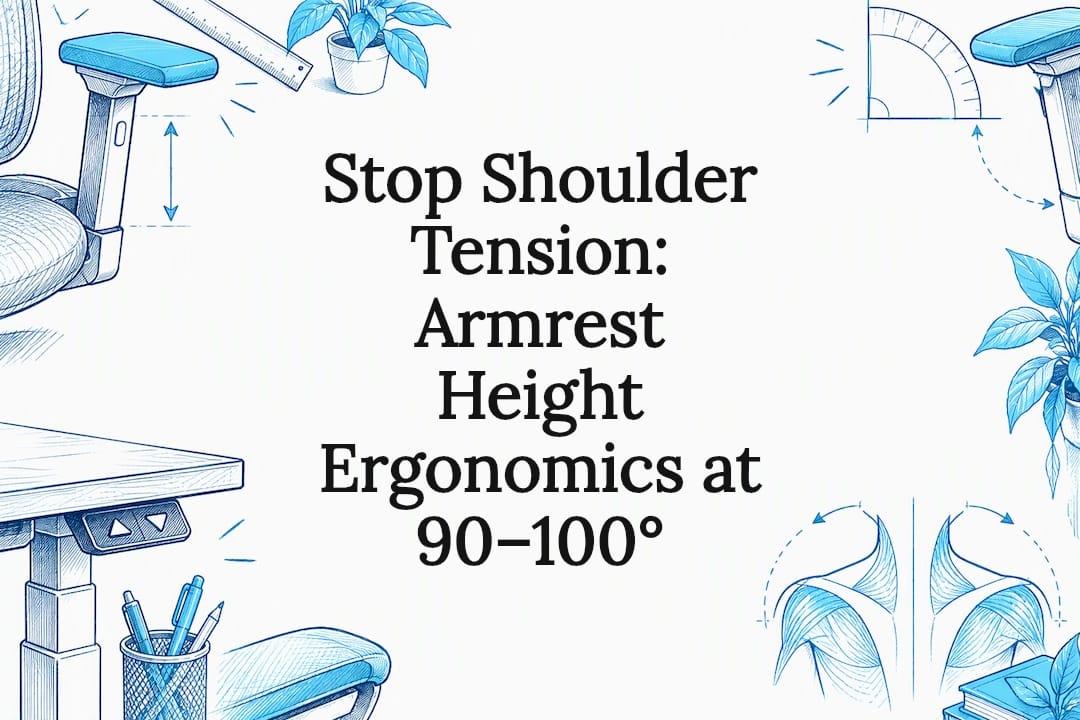
Set your armrests so your forearms sit at roughly a 90 to 100 degree angle at the elbow, with just enough contact under your elbows to feel light support, never a lift. This angle range keeps your shoulders relaxed instead of hiked up. Avoid raising the armrests so high that your shoulders shrug, and never let them stop you pulling your chair close to the desk. If you spend long stretches on mouse work, you may need a slightly different setting for that task alone.
TL;DR:
- Proper armrest height allows a roughly 90 to 100 degree elbow angle and light contact without pushing or lifting the elbows.
- Incorrect armrest positioning can raise shoulders, strain the shoulders, or block desk access, causing discomfort and muscle tension.
- Adjustable armrests help tailor support for different tasks, especially for prolonged computer work, and should be fine-tuned regularly.
- If armrests prevent you from sitting close to the desk or cause shoulder shrugging, removal or replacement with adjustable options is recommended.
- Regularly reviewing and tweaking armrest and seat setup ensures optimal ergonomic posture, especially after changes in desk or task type.
Table of Contents
- Why armrests matter for posture and muscle load
- Setting armrest height for a desktop computer setup
- Fixed versus adjustable armrests: which actually helps you
- When to remove, replace or modify your armrests
- Common mistakes in setting armrest height and how to avoid them
- Test, note and iterate
- How ULTI can help: chairs, monitor arms and sizing support
- FAQ
- Sources
Why armrests matter for posture and muscle load
Your arms are heavier than they feel when you are holding them up all day. Without support, your shoulder and neck muscles, particularly the upper trapezius and deltoid, stay switched on just to keep your arms in place while you type or click. Over a full workday, that low-level, constant effort adds up to fatigue and tension, even if you never lift anything heavy.
Correctly set armrests take that load off by giving your elbows somewhere to rest. The CCOHS guidance on ergonomic chairs notes that armrests can reduce stress on the shoulders and neck, but only when they are adjustable in height and width and actually set for the person using them. A chair is not automatically ergonomic because it has armrests fitted. It becomes ergonomic once you adjust it to your body and your tasks.
The benefit has a limit, though. Armrests set too wide, too high or too far forward can do the opposite of their job:
- They push your shoulders upward, reintroducing the exact tension they are meant to prevent.
- They hold your elbows too far from your torso, straining the shoulder rather than resting it.
- They physically block you from drawing your chair close to the desk, forcing you to lean or reach forward.
Peer-reviewed work on chair design backs this up. Research on armrest ergonomics found that adjustable armrests relieve muscle activity and support better seated posture specifically for people doing sustained computer input work, which is most of us.
Setting armrest height for a desktop computer setup
Getting this right takes a few minutes, not a single lucky guess. Work through your seat and desk relationship first, then fine-tune the armrests themselves.
Before touching the armrests, confirm three things: your seat height lets your feet rest flat on the floor or a footrest, your thighs sit roughly level with the floor, and your monitor's top edge is near eye height so you are not craning forward or down by using an Ergotron LX desk mount monitor arm to adjust your screen height. Armrest adjustments made on top of a bad seat height will not hold.
- Sit upright with your back against the backrest and let your shoulders drop and relax naturally.
- Let your upper arms hang straight down at your sides, then bend your elbows to about 90 degrees.
- Raise or lower the armrests until they just touch the underside of your elbows, with no gap and no upward push.
- Check your shoulders again. If they have crept up towards your ears, the armrests are too high.
- Reach for your keyboard and mouse without lifting your elbows off the rests. If you cannot, adjust the armrest width or depth, or move your chair closer to the desk.
- Type and click for a few minutes, then reassess. Small movements of a centimetre or two often make the biggest difference.
If the desk itself sits too high relative to your chair, no armrest adjustment will fully fix the mismatch. A standing desk height chart can help you check whether your desk, not your chair, is the actual problem. If your feet dangle once the desk and armrests line up, add a footrest rather than raising the seat further. If the armrest pads feel hard or too narrow, slip-on gel pads can soften the contact point without a full chair swap. When the armrest simply cannot be moved out of the way of the desk edge, consider removing it rather than compromising your working posture.
Pro Tip: If your work is mostly mouse-driven rather than typing-driven, try setting the armrest very slightly higher and closer than the standard 90 degree guideline, then test for a day before deciding if it feels better.
Fixed versus adjustable armrests: which actually helps you
Not every chair needs fully adjustable armrests, but most computer-heavy workdays benefit from them. The deciding factor is how varied your tasks are and how many people use the same chair.
- Adjustable armrests let you match the support to the task, lower for typing, higher and closer for mouse-intensive work, which matters because preferred armrest position shifts with how constrained your workspace and tasks are.
- Shared or multi-user environments need adjustability simply because no two people have the same arm length or torso height.
- Fixed armrests can be perfectly acceptable for stable, single-task setups, such as a reading chair or a budget desk chair used briefly each day.
- When choosing an adjustable chair, height adjustment matters most, followed by width, then depth and pivot, which are useful refinements rather than essentials.
If your current armrests cannot move in any direction and you are finding your shoulders tense by midafternoon, that is usually the clearest sign it is time to look at an adjustable option rather than persisting with a fixed one.
When to remove, replace or modify your armrests
A few warning signs tell you the armrests are working against you rather than for you. If you cannot draw your chair close enough to the desk without the armrests catching on the edge, if your shoulders shrug noticeably once your elbows rest on the pads, or if you notice neck tension building through the afternoon, the armrests need attention rather than tolerance.
The CCOHS adjustment guidance is direct on this point: if armrests prevent you getting close to your desk, remove them. You have a few practical options beyond full removal.
- Swap the hard plastic pads for soft gel or foam covers if the contact point itself feels uncomfortable rather than badly positioned.
- Move to a chair with height and width adjustable armrests if your current ones simply cannot be tuned to fit.
- Choose a shorter or more compact armrest style, since armrests extending less than about 25 centimetres from the back of the seat tend to still allow close desk access.
- Remove the armrests entirely if your desk design or task simply does not suit them.
Run through those four options in order before assuming a full chair replacement is the only fix.
Common mistakes in setting armrest height and how to avoid them
The most frequent error is setting armrest height once and never revisiting it after a desk, chair or task change. A new monitor arm, a different keyboard, or a desk raised for standing work all shift the ideal armrest position, yet most people never readjust.
Another common mistake is prioritising the armrests over the desk and chair relationship. Armrest height only works correctly once your seat height, desk height and monitor position are already sorted, so adjusting armrests first, before anything else, usually means redoing the work later.
People also tend to set armrests high enough to touch their elbows firmly rather than lightly. Firm contact pushes the shoulder upward over time, even if it feels supportive in the first few minutes.
A further mistake is ignoring task variation. Setting one static position and using it for both typing and intensive mouse work ignores that preferred armrest positioning shifts depending on how constrained the task space is. Finally, many people persist with armrests that physically block desk closeness rather than removing them, trading posture for the comfort of not changing anything.

Test, note and iterate

The single best armrest height is rarely found in one sitting. Treat your first adjustment as a starting point, not a final answer: note how your shoulders and neck feel after an hour of typing, then after an hour of mouse-heavy work, and adjust again.
Small, task-specific tweaks beat a single rigid setting applied to every task you do. If you are genuinely unsure whether your setup is close, a short trial in a showroom or a measuring session against your own desk and chair tells you more in ten minutes than another guideline will.
— ULTI
How ULTI can help: chairs, monitor arms and sizing support
Once you know the angle and contact point you are aiming for, the practical challenge is finding a chair and desk combination that actually lets you hit it. We design our ergonomic chairs with height, width and depth adjustable armrests specifically so you can set them to the 90 to 100 degree guideline rather than settling for whatever position the chair arrived in.

If you are not sure which model fits your height and desk setup, our ergonomic chair finder matches your measurements to a suitable chair before you buy. We also publish a standing desk height and sizing guide to check that your desk height and armrest position actually work together, and a monitor arm compatibility checker for readers whose screen position also needs adjusting alongside their armrests. For anyone who would rather not handle the setup themselves, our installation service covers fitting for desks and chairs alike. If you want to see and feel the adjustment range before committing, showrooms may allow you to trial a chair against your own measurements.
FAQ
How high should an armrest be?
Set the armrest so your forearm sits at roughly a 90 to 100 degree angle at the elbow, with the armrest making only light contact under the elbow rather than pushing it upward. The CCOHS adjustment guidance is the clearest reference point for this range.
What is the 90-90-90 rule in ergonomics?
It refers to keeping your elbows, hips and knees each at roughly a 90 degree angle while seated at a desk: elbows bent for typing, hips at the seat back, and knees level with the floor. It is a useful starting reference rather than a strict rule everybody must match exactly.
Are armrests good for ergonomics?
Armrests can reduce shoulder and neck muscle strain when they are adjustable and properly set for your body and task, according to CCOHS guidance on ergonomic chairs. Poorly set armrests, too high, too wide or blocking desk closeness, can cause the same tension they are meant to prevent.
What is the typical armrest height for a sofa?
Sofa armrest height is set for lounging comfort rather than task work, so it follows different reasoning from a desk chair and typically sits higher relative to the seat. For desk-based ergonomics specifically, the relevant measure is always the 90 to 100 degree elbow angle described in the CCOHS chair adjustment guidance, not sofa dimensions.
Can I use ULTI products to check my armrest setup?
Our standing desk height chart and ergonomic chair finder help you check that your desk, chair and armrest heights line up correctly. Our ergonomic chairs include height, width and depth adjustable armrests to support this kind of fine-tuning.
Sources
- How do I adjust a chair for my height? — CCOHS
- Chairs with armrests: ergonomic design issues — SAGE Journals